
Amazon S3
Requirements
- An Amazon Web Services (AWS) account with user creation via the console interface available at this address :
Use the Identity Access Management (IAM) service to create and manage your users(Services > Security, Identity & Compliance > IAM).
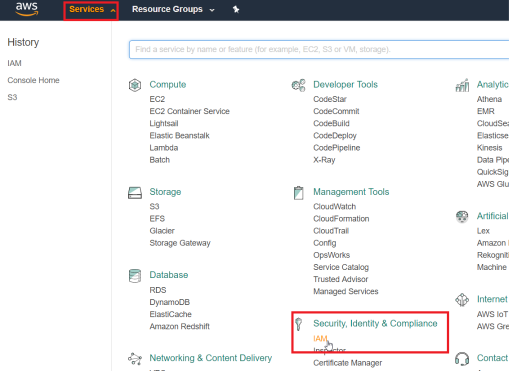
- When creating users, be sure to note the pairs (access key ID, secret access key) for each user so that you can provide them to the Digdash Amazon S3 client.
- Create a bucket with a universally unique name on Amazon S3.
Creating a new Amazon S3 file server
You can create a new Amazon S3 File Server from within the Studio.
- In the Studio, click the Managers button in the sidebar on the left of the window, then select Servers.
➡ The Server URL Manager dialog box appears. - Click on the + button to the right of the search bar and then, in the menu that appears, select the type of server: Amazon S3.
➡ The Add a file server box appears - Fill in the fields as described in the Server configuration paragraph below.
Server configuration
Server name
Give your new Amazon S3 document server a name.
URL
Enter:
- the generic URL if your files are stored on Amazon S3: "https://s3.amazonaws.com"
- the URL of the hosting server if you are using another service or your own server.
User document path
The user document path must begin with the name of the existing compartment you want to explore, followed by the path to the directory containing your documents.
It is also used to check that access to your account is valid.
Example: Let's say the name of the following existing compartment: "dd-com-test-bucket".
Then a valid document path would be:
dd-com-test-bucket/directory1/directory2/directory3/
Exploring sub-folders
You can limit the level of exploration from your document path.
By default, the document search is recursive and will explore all sub-folders.
| Fields | Browse subfolders | Subfolder level | |
| Values | Enabled | Empty Default value, recursive exploration of all sub-folders | N > 0 All N sub-folders will be searched |
| Off | 0 No exploration in sub-folders, only in the current directory | ||
Read only
Only reading is possible if this option is enabled.
Access key ID
Enter the access key ID supplied when your user was created.
Secret access key
Enter the secret access key supplied when your user was created.
Possible actions
You can use the File Manager to take action on the files on the FTP(S) server.
See the page File Manager page for more details.